How to Get Google Business Reviews Using Google Places API
Introduction
Google Business reviews are an important way to display customer feedback on a website or application.
Google provides the Places API (New) to retrieve information about businesses listed on Google Maps, including business details, ratings, and reviews.
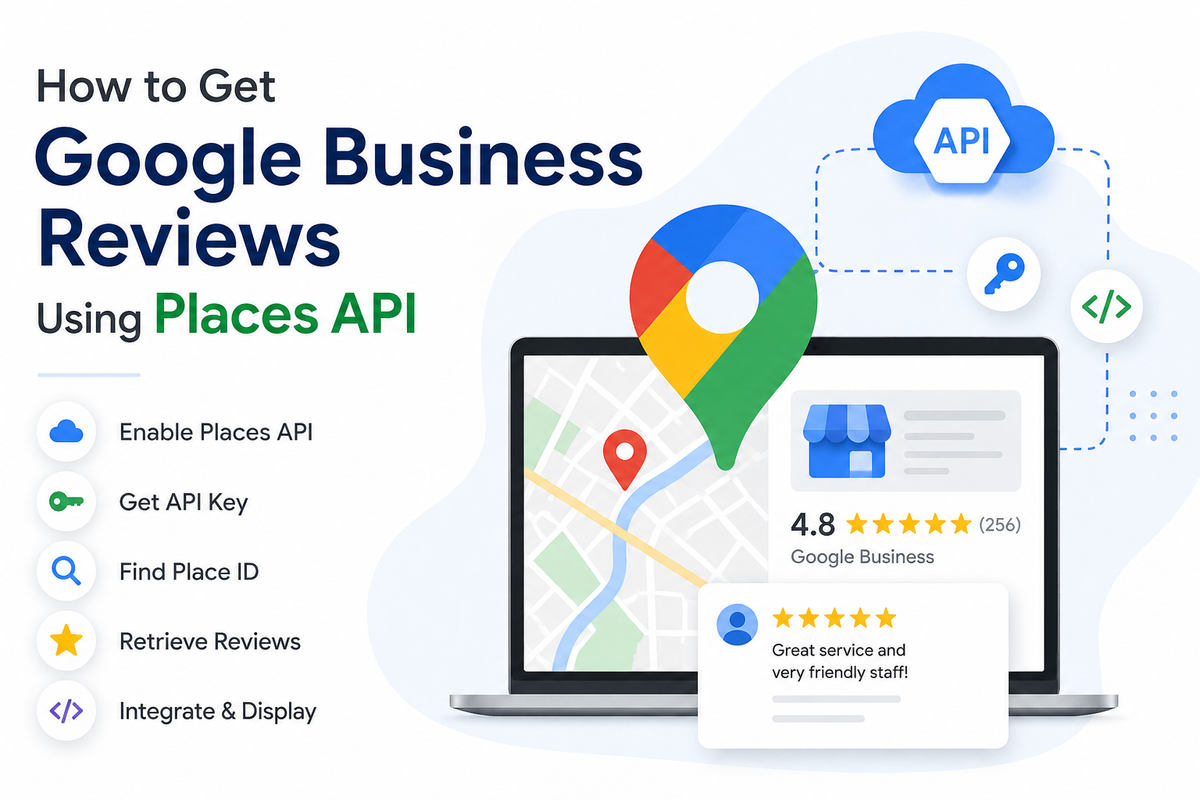
In this guide, we will explain step-by-step how to:
- Create a Google Cloud project.
- Enable the Places API.
- Configure billing.
- Create an API key.
- Find a business and retrieve its Place ID.
- Send the Request.
- Get Business Details and Reviews.
- Understand the Review Response.
- Pricing for Google Business Reviews
Step 1: Create a Google Cloud Project
Before using the Google Places API, we need a project in Google Cloud Console.
1. Open Google Cloud Console
Go to: Google Cloud Console
2. Sign in
Sign in using your Google account.
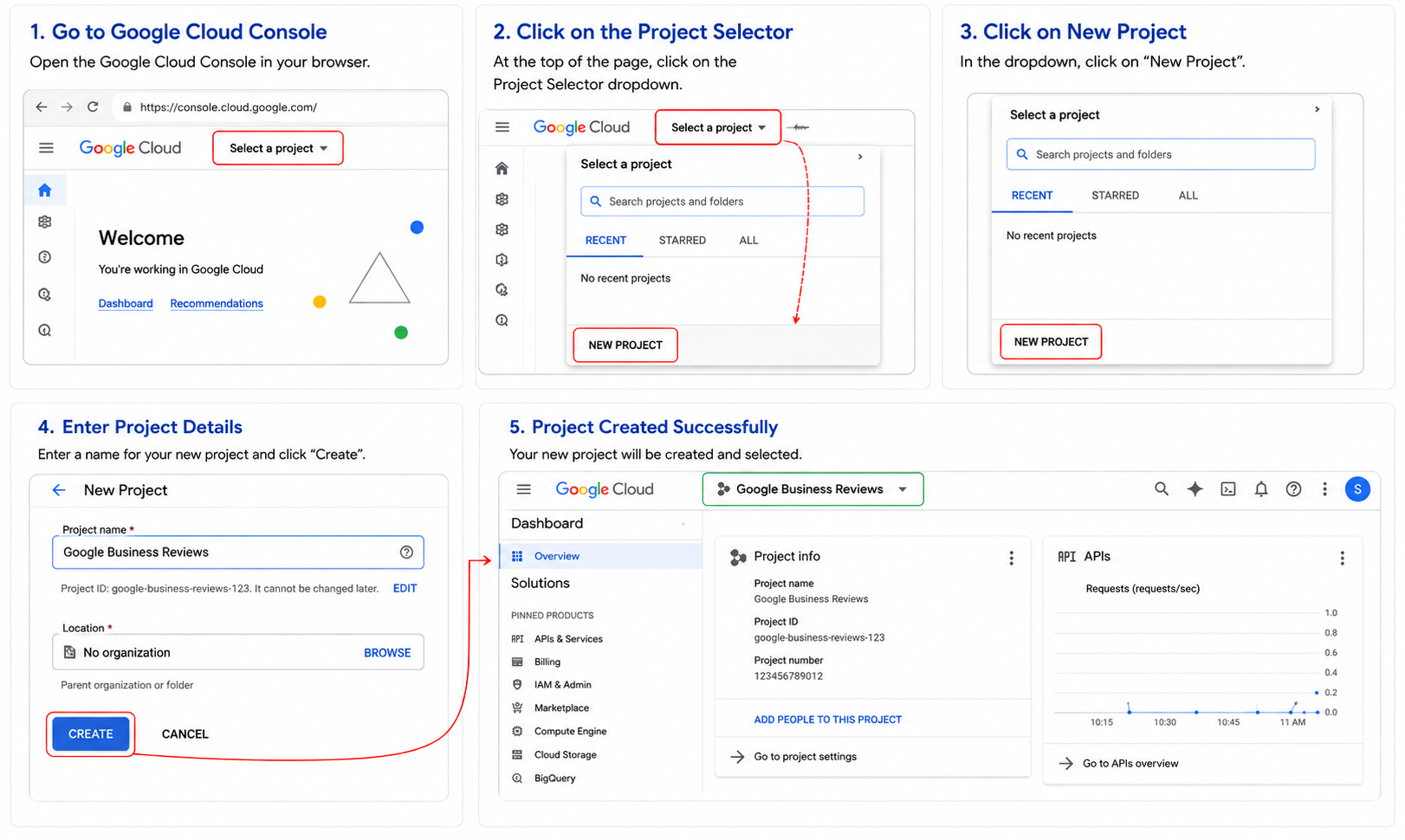
3. Create a new project
From the project selector at the top of the Google Cloud Console:
- Click the Project Selector.
- Click New Project.
- Enter a project name.
For example:
Google Business Reviews- Click Create.
Why do we need a project?
Google APIs are enabled and managed at the project level. The project is also where API credentials, billing, usage, and restrictions are managed.
Step 2: Enable the Places API (New)
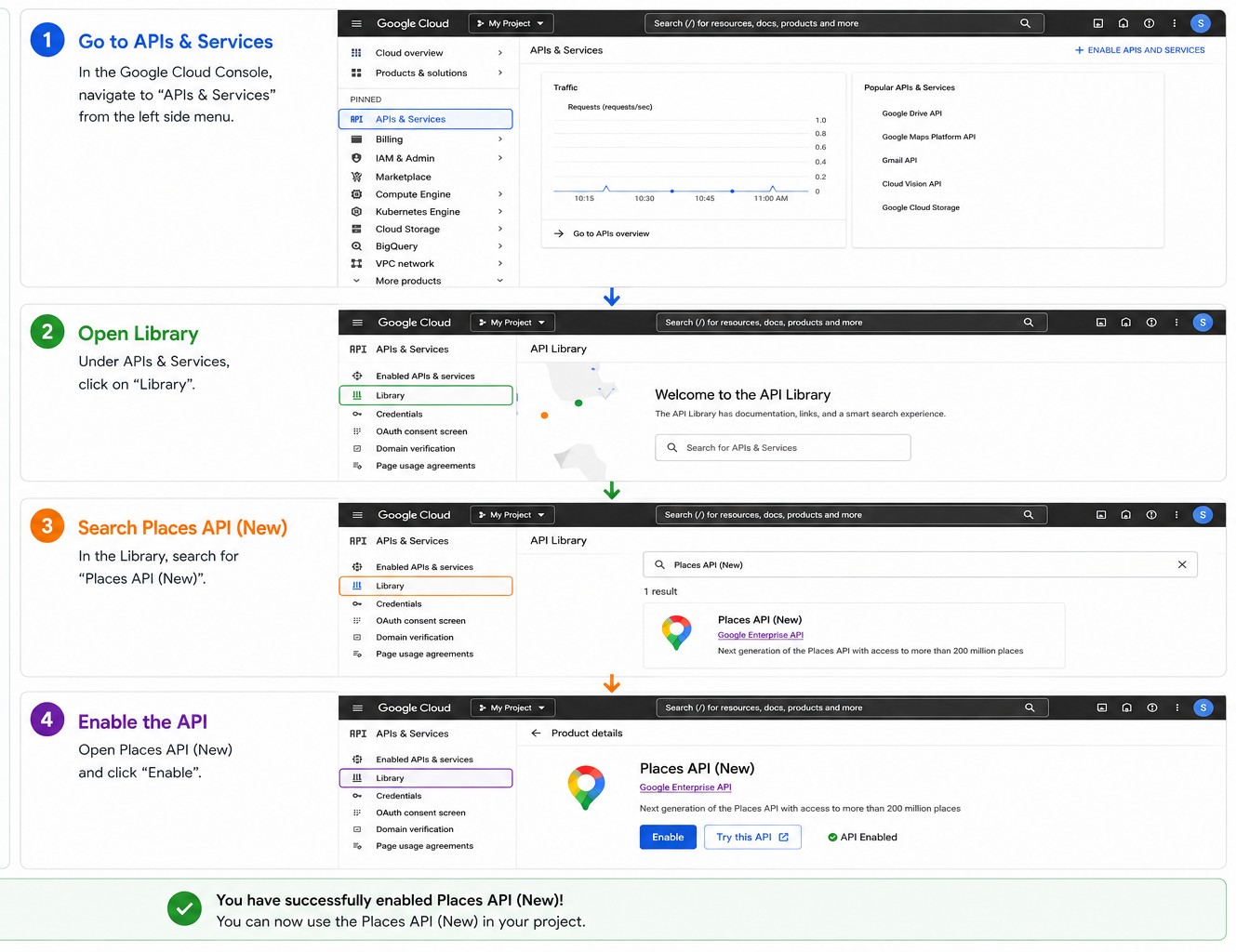
Once the project has been created, the next step is to enable the Places API.
Google's current version is Places API (New). It provides APIs such as Text Search, Place Details, Nearby Search, Place Photos, and Autocomplete.
Steps
- Open the Google Cloud Console.
- Select the project created in Step 1.
- Go to:
APIs & Services → Library
- Search for:
Places API (New)- Open the API.
- Click Enable.
Step 3: Configure Billing
Google Maps Platform APIs require a billing account to be associated with the project.
Steps
- Open Google Cloud Console.
- Select your project.
- Go to:
Billing
- Select an existing billing account or create one.
- Link the billing account to the Google Cloud project.
Important
Enabling billing does not mean that every API request costs the same amount.
Google Places API billing depends on the API and the fields requested. In particular, Places API (New) uses field masks to control which data is returned, and the requested fields can affect billing.
Therefore, we should request only the fields that are actually required.
For example, if we only need the Place ID while searching for a business, we don't need to request unnecessary business information.
Step 4: Create an API Key
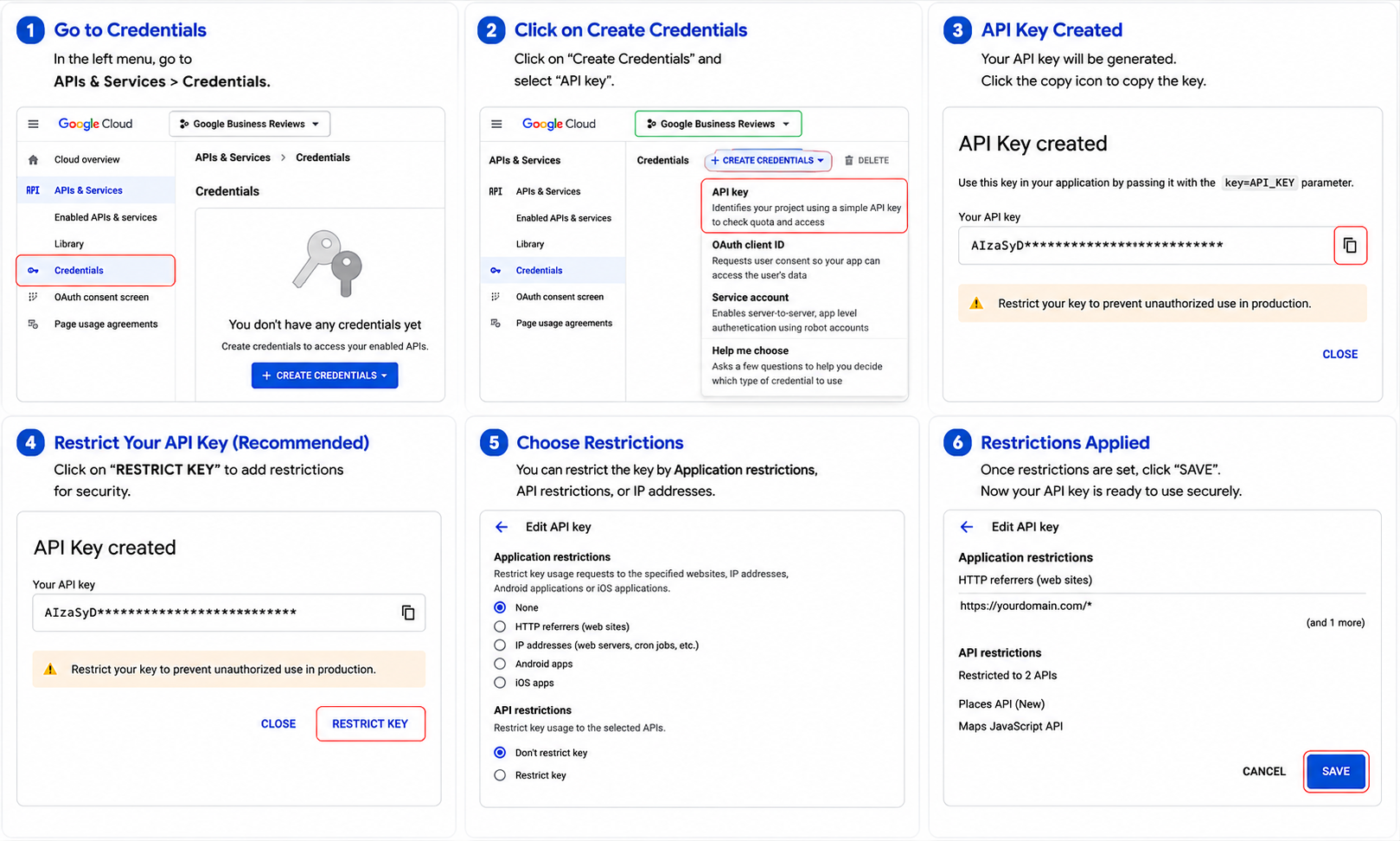
After enabling the API and configuring billing, we need credentials to authenticate our API requests.
For this implementation, we can create an API key.
Steps
- Go to:
APIs & Services → Credentials
- Click Create Credentials.
- Select API key.
- Google Cloud will generate an API key.
The key will look similar to:
AIzaSyxxxxxxxxxxxxxxxxxxxxxxxxxxxxxxxImportant: Secure the API Key
The API key should not be exposed publicly.
For production usage, Google recommends applying restrictions to the key.
For example, depending on where the API is being called from, restrictions can be applied based on:
- Websites
- IP addresses
- Android applications
- iOS applications
- APIs that the key is allowed to access
Step 5: Find the Business and Get the Place ID
This is an important step.
To retrieve reviews for a specific business, we first need to identify the correct Google Maps place and obtain its Place ID.
A Place ID is a unique identifier for a place in Google's Places database.
For example:
ChIJxxxxxxxxxxxxxxxxxxxxUsing Places API (New)
The current API uses Text Search (New) to find a business.
The endpoint is:
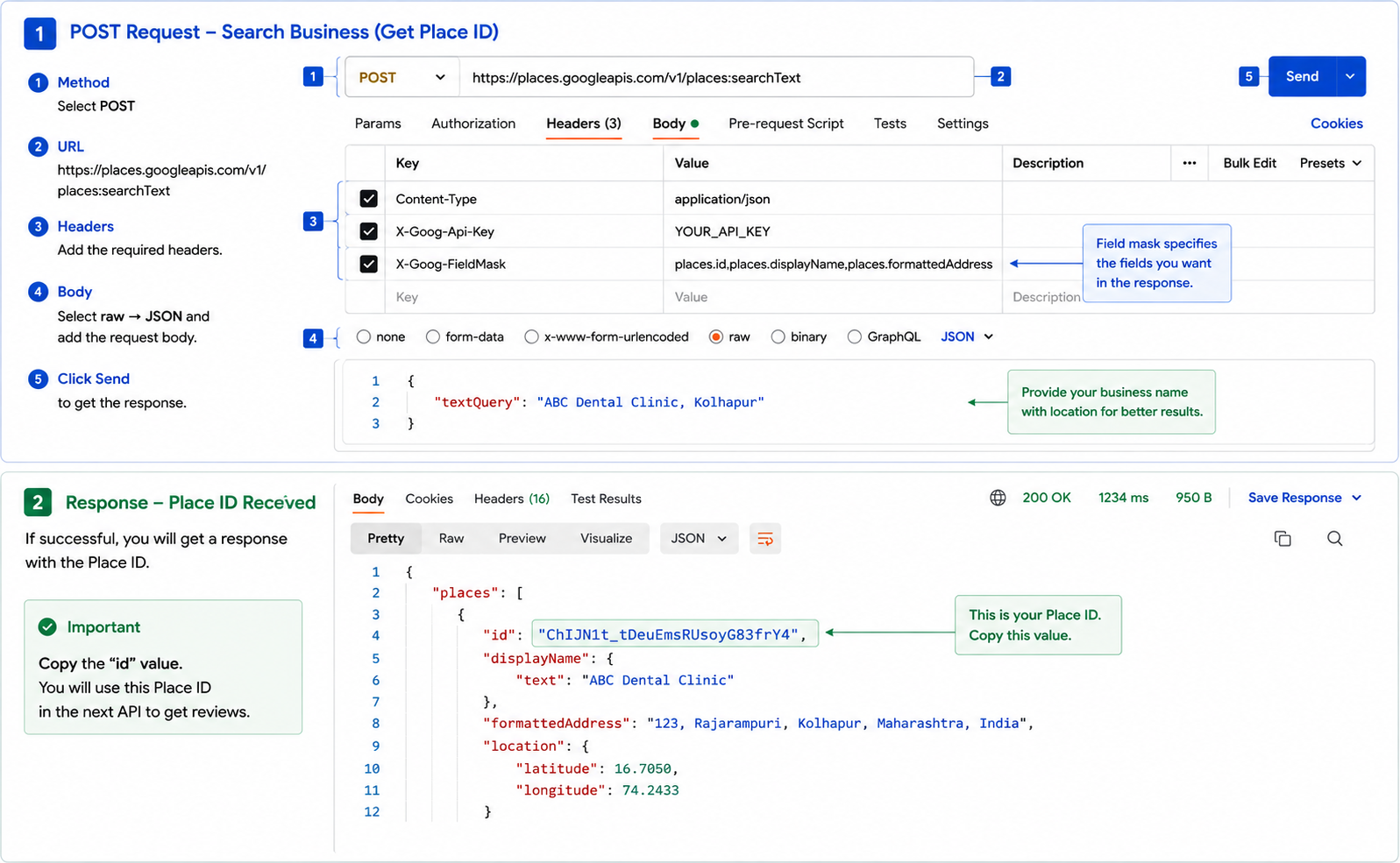
POST https://places.googleapis.com/v1/places:searchTextGoogle's current Text Search API uses a POST request with a JSON body and requires a field mask specifying which fields should be returned.
We can use Postman or another API testing tool to test the API before integrating it into the application.
Create a new request
Open Postman and create a new request.
Method
POSTURL
https://places.googleapis.com/v1/places:searchTextAdd Headers
Add the following headers:
Header 1
Content-Type: application/jsonHeader 2
X-Goog-Api-Key: YOUR_API_KEYHeader 3
X-Goog-FieldMask: places.id,places.displayName,places.formattedAddressThe field mask tells Google which fields we want in the response. A field mask is required for Places API (New) requests
In Postman:
Body → raw → JSON
Add:
{
  "textQuery": "YOUR BUSINESS NAME"
}
For example:
{
  "textQuery": "ABC Dental Clinic, Kolhapur"
}
It is better to include enough information to identify the correct business, such as:
- Business name
- City
- Location
- Address
This reduces the chance of selecting the wrong business.
Step 6: Send the Request
Click Send in Postman.
If the request is successful, Google will return a response similar to:
{
  "places": [
    {
      "id": "ChIJxxxxxxxxxxxxxxxxxxxx",
      "displayName": {
        "text": "ABC Dental Clinic"
      },
      "formattedAddress": "Kolhapur, Maharashtra, India"
    }
  ]
}
The important value here is the ID of that place
For example:
ChIJxxxxxxxxxxxxxxxxxxxxThis is the Place ID.
Why is the Place ID important?
The Place ID uniquely identifies the business.
We will use this ID in the next API request to retrieve information about the business, including its reviews. Google specifically documents Place Details as the API to use when you already have a Place ID.
Step 7: Get Business Details and Reviews
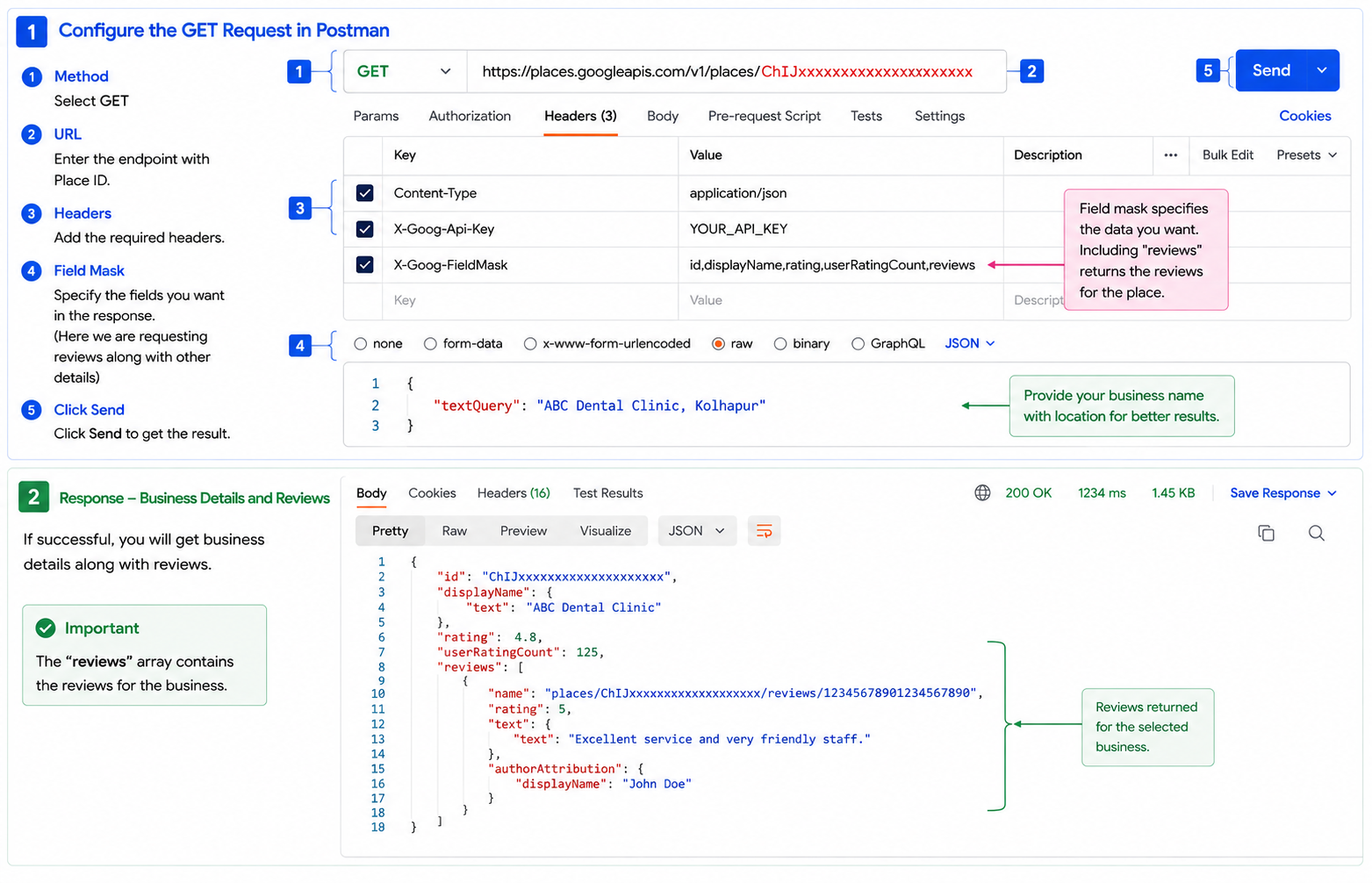
Once you have the Place ID, use it to retrieve the business details and reviews through the Place Details (New) API.
Method:
GET
URL:
https://places.googleapis.com/v1/places/{PLACE_ID}Replace {PLACE_ID} with the Place ID obtained in the previous step.
Example:
https://places.googleapis.com/v1/places/ChIJxxxxxxxxxxxxxxxxxxxxIn Postman, add the following headers:
Content-Type: application/json
X-Goog-Api-Key: YOUR_API_KEY
X-Goog-FieldMask: id,displayName,rating,userRatingCount,reviews
The X-Goog-FieldMask specifies the information we want from the API, including the business name, rating, total number of ratings, and reviews.
Click Send. If the request is successful, the API will return the business details along with the available reviews.
Sample Response:
{
  "id": "ChIJxxxxxxxxxxxxxxxxxxxx",
  "displayName": {
    "text": "ABC Dental Clinic"
  },
  "rating": 4.8,
  "userRatingCount": 125,
  "reviews": [
    {
      "rating": 5,
      "text": {
        "text": "Excellent service and very friendly staff."
      },
      "authorAttribution": {
        "displayName": "John Doe"
      }
    }
  ]
}
Important: The reviews array contains the review information returned for the selected business. The exact response may vary depending on the available data and the fields requested.
Step 8: Understand the Review Response
The reviews array contains the reviews returned for the business.
Important information can include:
| Field | Description |
|---|---|
rating | Rating given by the reviewer |
text | Review text |
authorAttribution | Information about the reviewer |
publishTime | Date/time when the review was published |
googleMapsUri | Link to the review on Google Maps, when requested/available |
Google's current Places API can also provide Google Maps links for reviews when the appropriate field is requested.
After successfully testing the APIs in Postman, the same API flow can be implemented in the application.
The application can:
- Store the business's Place ID.
- Send a Place Details request.
- Request the required review fields.
- Receive the review data.
- Process the response.
- Display the reviews in the website's review section.
Step 9: Pricing for Google Business Reviews
For retrieving Google Business Reviews, we use the Place Details (New) API with the reviews field.
Because reviews is an Enterprise + Atmosphere field, the request is billed under Places API Place Details Enterprise + Atmosphere.
Current India Pricing
- Free usage: First 7,000 requests/month
- After the free usage: $7.50 per 1,000 requests
- This means approximately $0.0075 per request after the free allowance.
Example
| Monthly review requests | Approx. API cost |
|---|---|
| 1,000 | $0 |
| 7,000 | $0 |
| 8,000 | $7.50 |
| 10,000 | $22.50 |
| 100,000 | $697.50 |
The first 7,000 requests are covered by the India free usage cap; charges apply to the requests beyond that cap according to the applicable pricing tier.
Important: A request to Place Details with reviews is counted as one Place Details API request. The number of individual reviews returned in that response does not mean you are charged separately for each review. The API returns reviews as part of the Place Details response.
Conclusion
Using the Google Places API (New), we can easily retrieve Google Business reviews and display them in our application. The process involves creating a Google Cloud project, enabling the Places API, configuring billing, creating and securing an API key, obtaining the business Place ID, and using the Place Details API to retrieve the available reviews.
By following this approach, the review data can be integrated into a website or application while keeping API usage controlled and costs manageable. It is also recommended to store the Place ID and request only the required fields to avoid unnecessary API calls and optimize costs.
Overall, the Places API (New) provides a reliable way to integrate Google Business information and customer reviews into our application.