Document Upload and Storage Using Spring Boot, Kotlin, and Nextcloud
Introduction :
Document upload is a common requirement in modern applications. In a multi-tenant application, document storage must also maintain clear separation among tenants, users, and system-level documents.
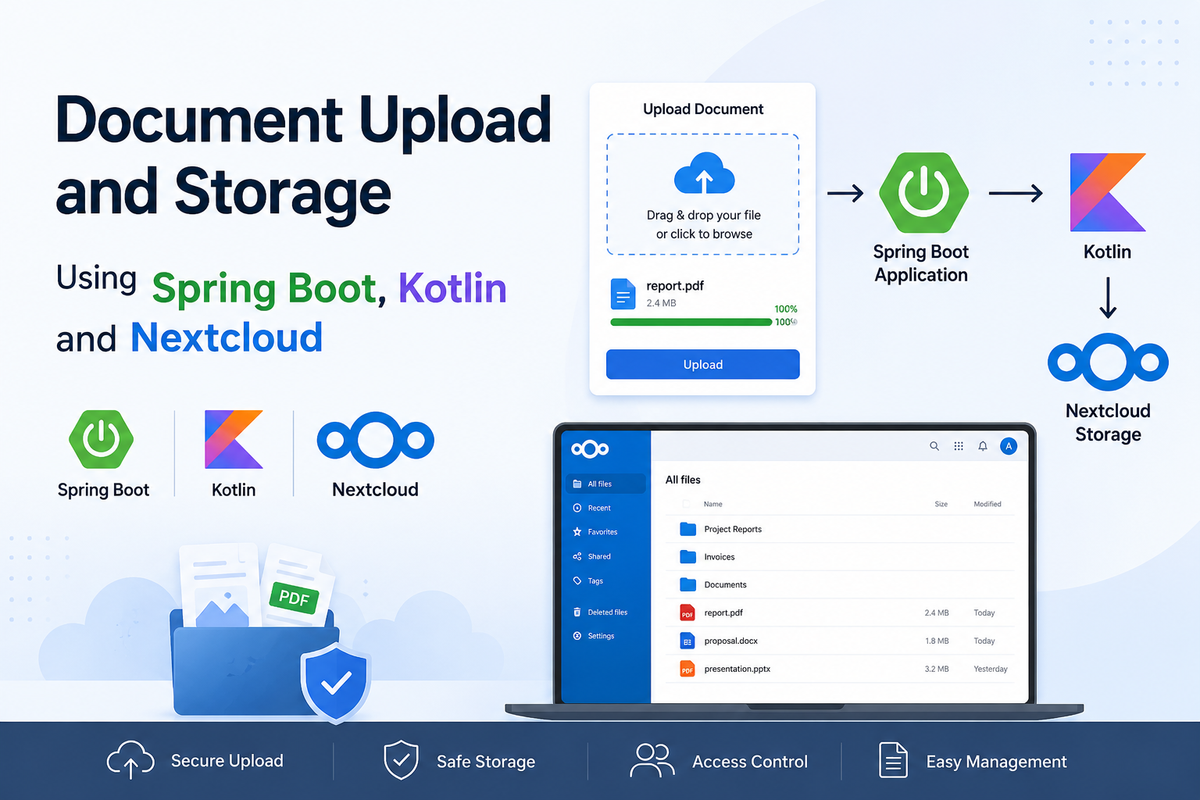
In our application, we use Spring Boot, Kotlin, MongoDB, and Nextcloud to manage documents.
During tenant registration, document-storage information such as the Nextcloud user, authentication details, URL, user entities, and system entities is configured.
The main idea is :
- Nextcloud stores the actual documents.
- MongoDB stores document metadata.
- Tenant configuration defines where and how documents are stored.
- Spring Boot WebFlux manages the complete upload flow.
Complete Document Upload Flow :
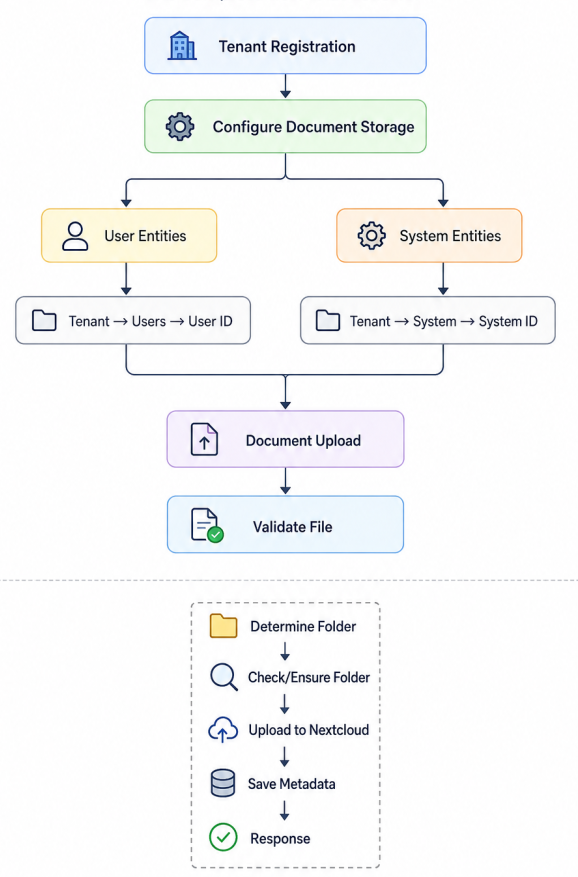
1. Document Configuration During Tenant Registration
When a tenant is registered, the document storage configuration is also added. The configuration contains information such as:
- Nextcloud user
- Authentication details
- Nextcloud URL
- User entities
- System entities
This configuration tells the application which document types belong to users and which belong to the system.
2. User Entity Documents
User entity documents are documents that belong to a specific user. The storage structure is:
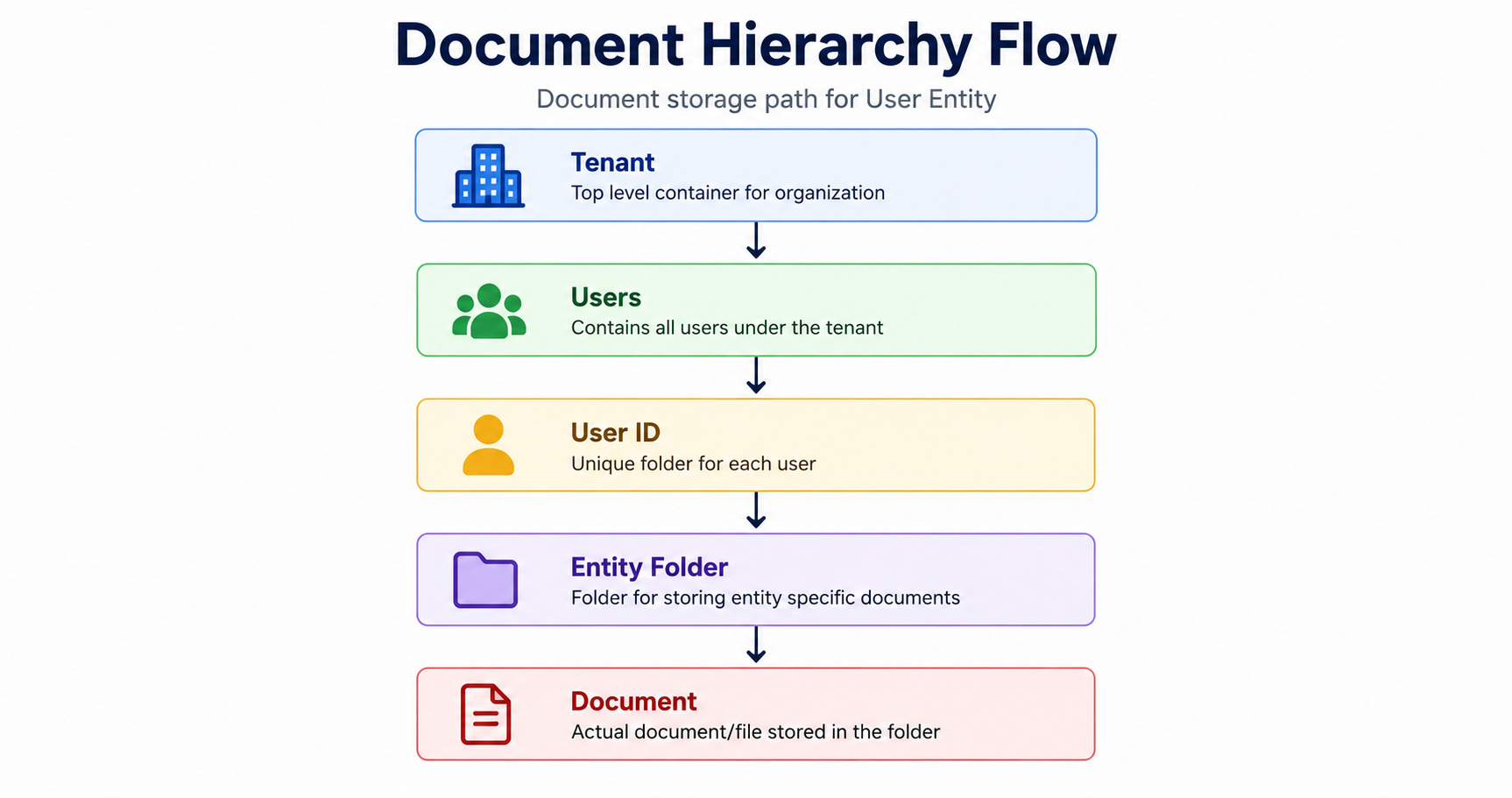
For example:
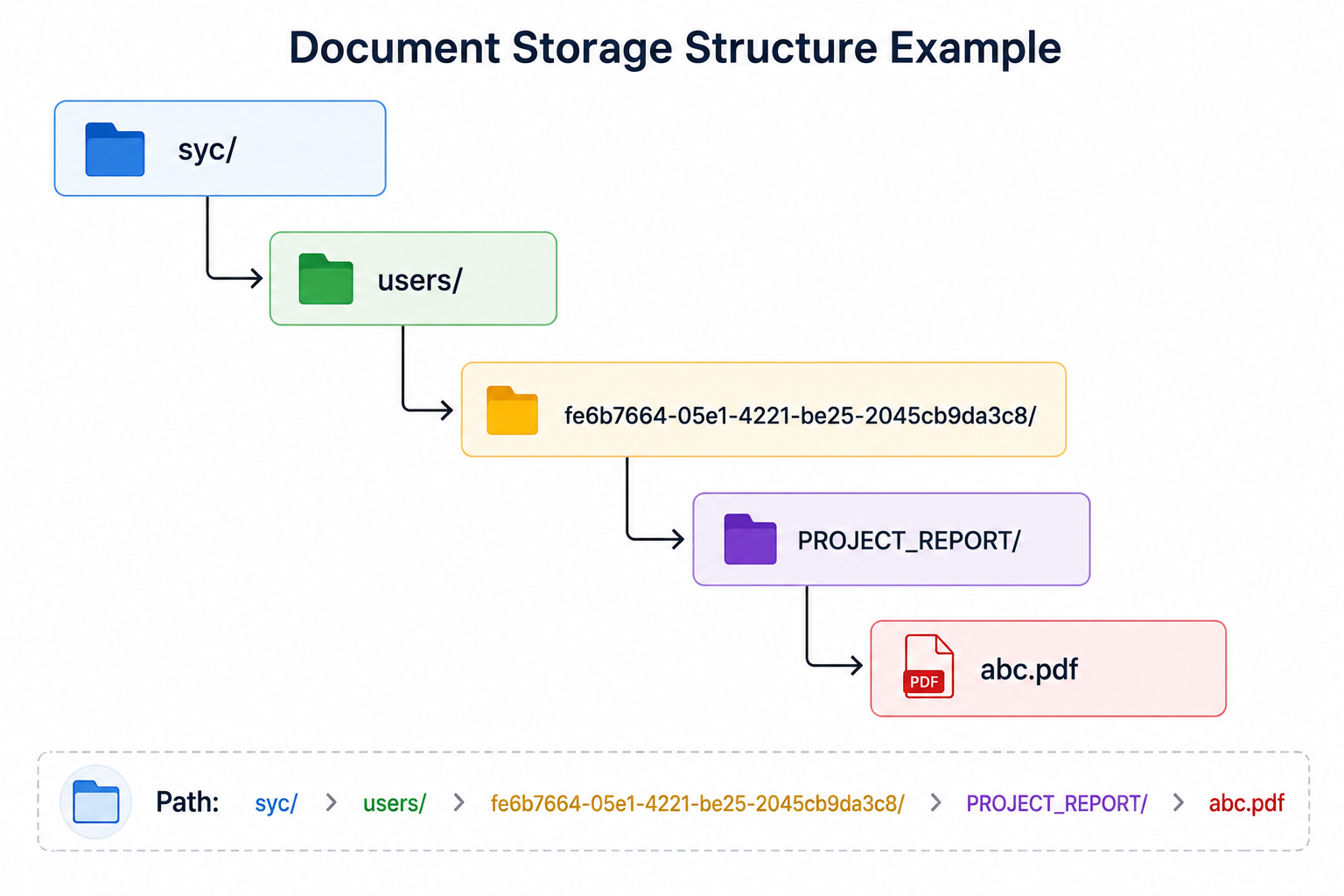
Here:
- syc → Tenant
- users → User document category
- fe6b7664-05e1-4221-be25-2045cb9da3c8 → User ID
- PROJECT_REPORT → User entity
- abc.pdf → Uploaded document
This structure ensures that user documents remain associated with the correct tenant and user.
3. System Entity Documents
System entity documents belong to the tenant’s system rather than to a specific user. The storage structure is:
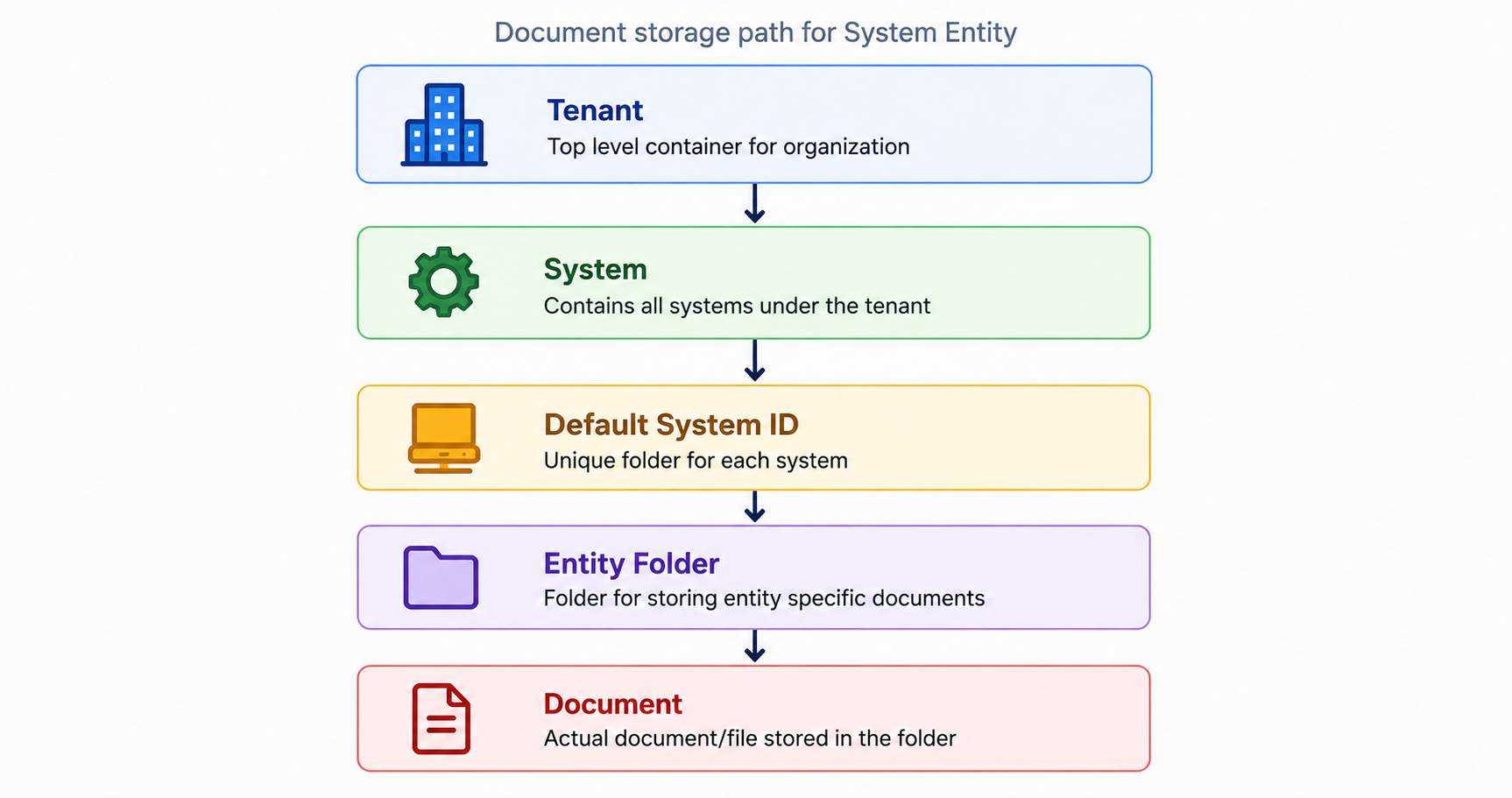
For example:
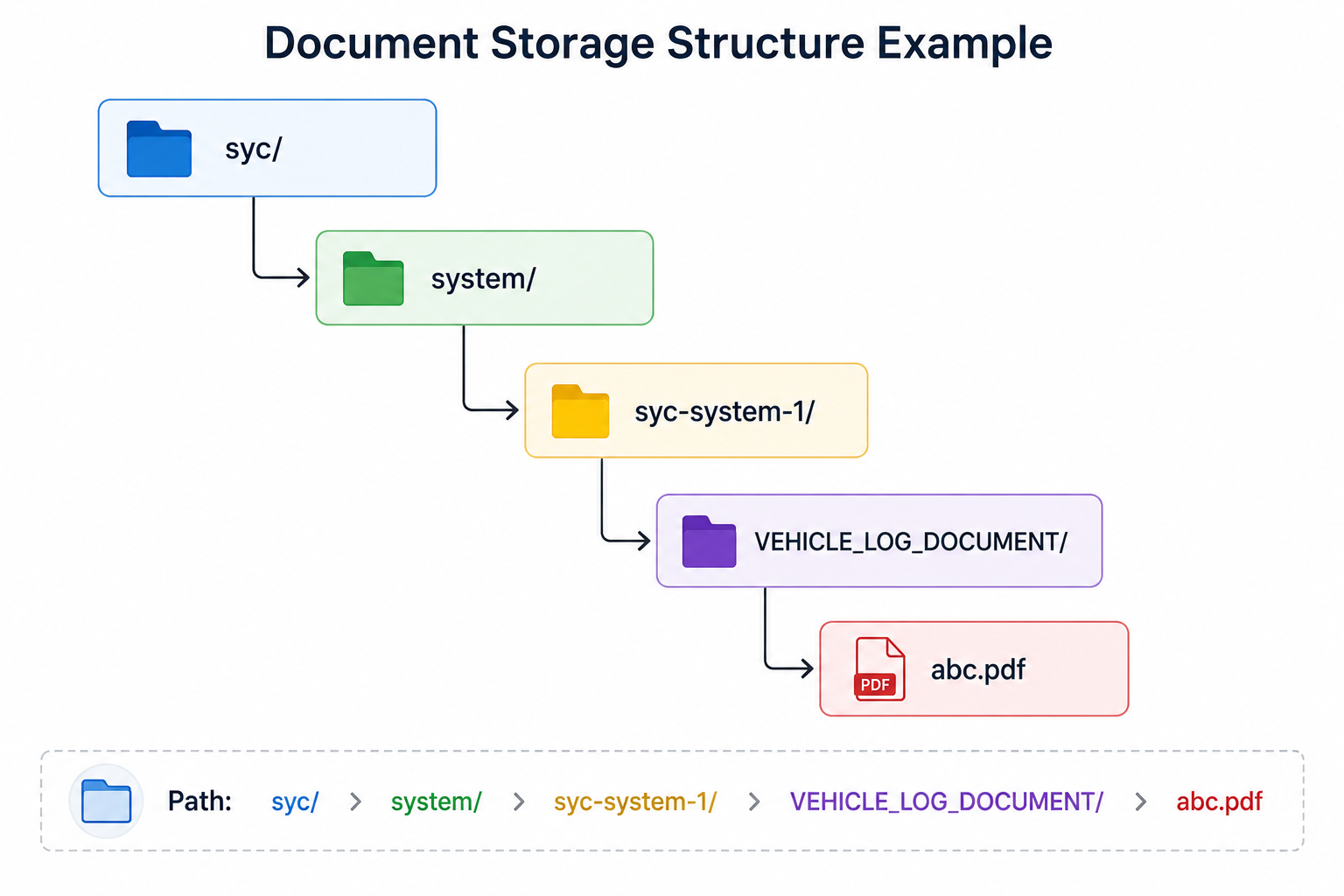
Here:
- syc → Tenant
- system → System document category
- syc-system-1 → Default system object ID
- VEHICLE_LOG_DOCUMENT → System entity
- abc.pdf → Uploaded document
The same approach can be used for other system-level document entities.
4. Default SYSTEM Tenant
The application also has a special default SYSTEM tenant for documents that are not associated with a normal tenant.
Its structure is different from both tenant user documents and tenant system documents.
For example:
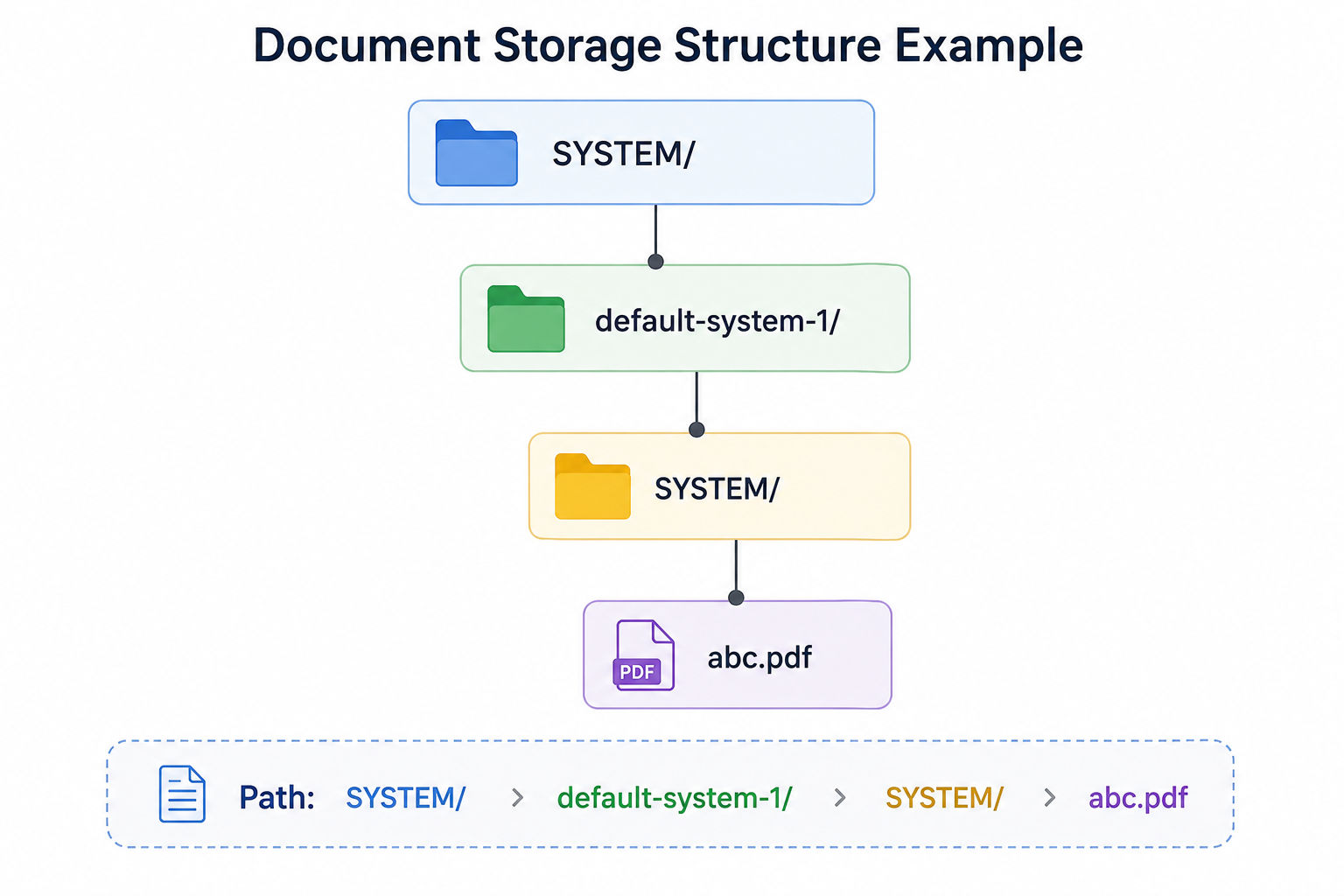
Here:
- SYSTEM → Default system tenant
- default-system-1 → Default system object ID
- SYSTEM → System entity
- abc.pdf → Uploaded document
This provides a dedicated location for application-level system documents.
5. Document Upload Process
Once the destination is determined, the application then creates the corresponding storage path.
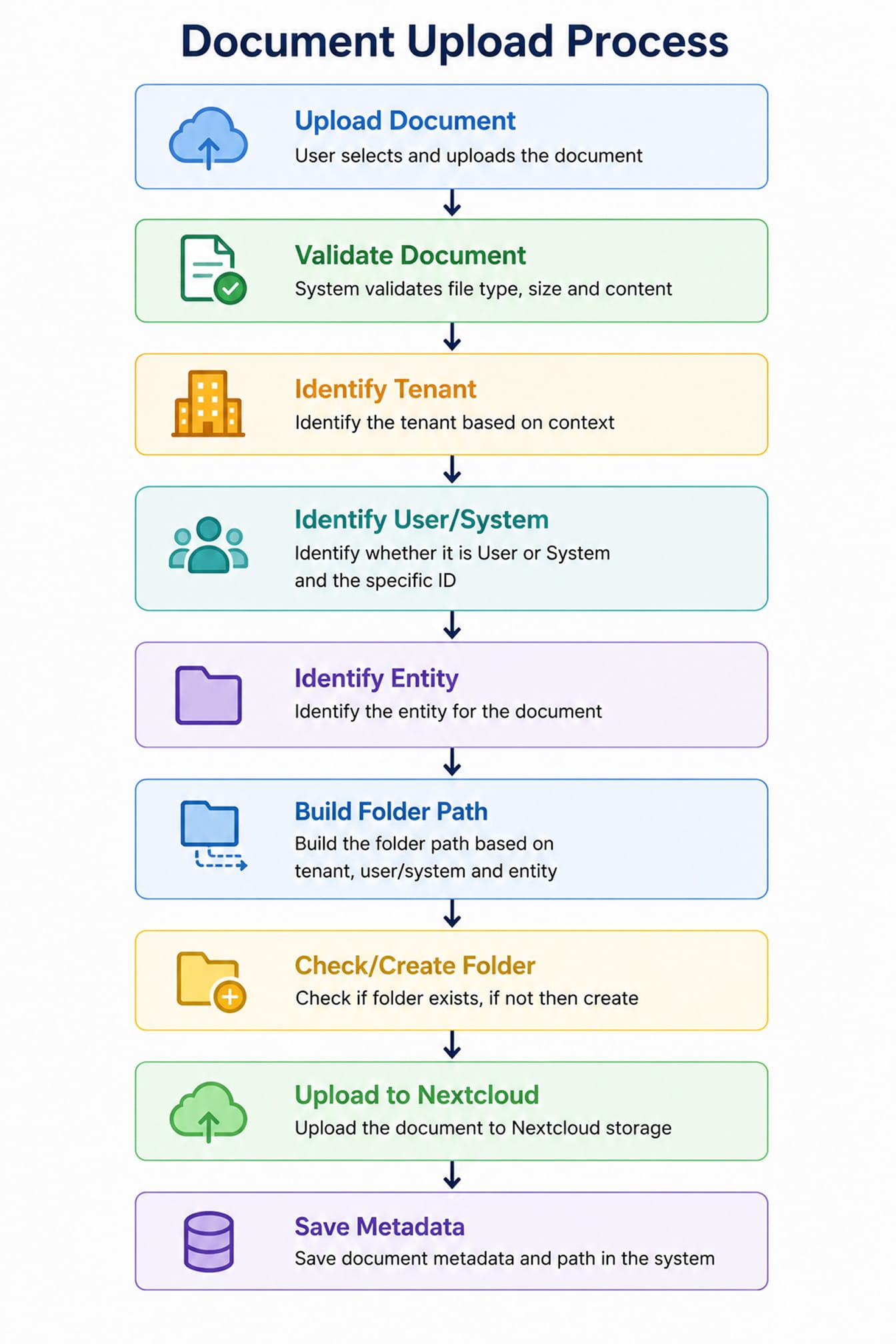
For example, if a user uploads a PROJECT_REPORT, the application identifies:
- Tenant → syc
- User → User ID
- Entity → PROJECT_REPORT
- File → abc.pdf
and creates the corresponding storage path.
6. Benefits of the Folder Structure
The folder structure is designed to provide:
Tenant Separation - Each tenant has its own document space.
User Separation - User documents are stored under the corresponding user ID.
System Separation - System documents are stored separately from user documents.
Entity Organization - Documents are grouped according to their configured entity.
Easy Retrieval - The application can determine the document locationbased on its tenant, user/system, entity, and document information.
7. Check or Create Folder
Before uploading a document, the application checks whether the required folder exists.
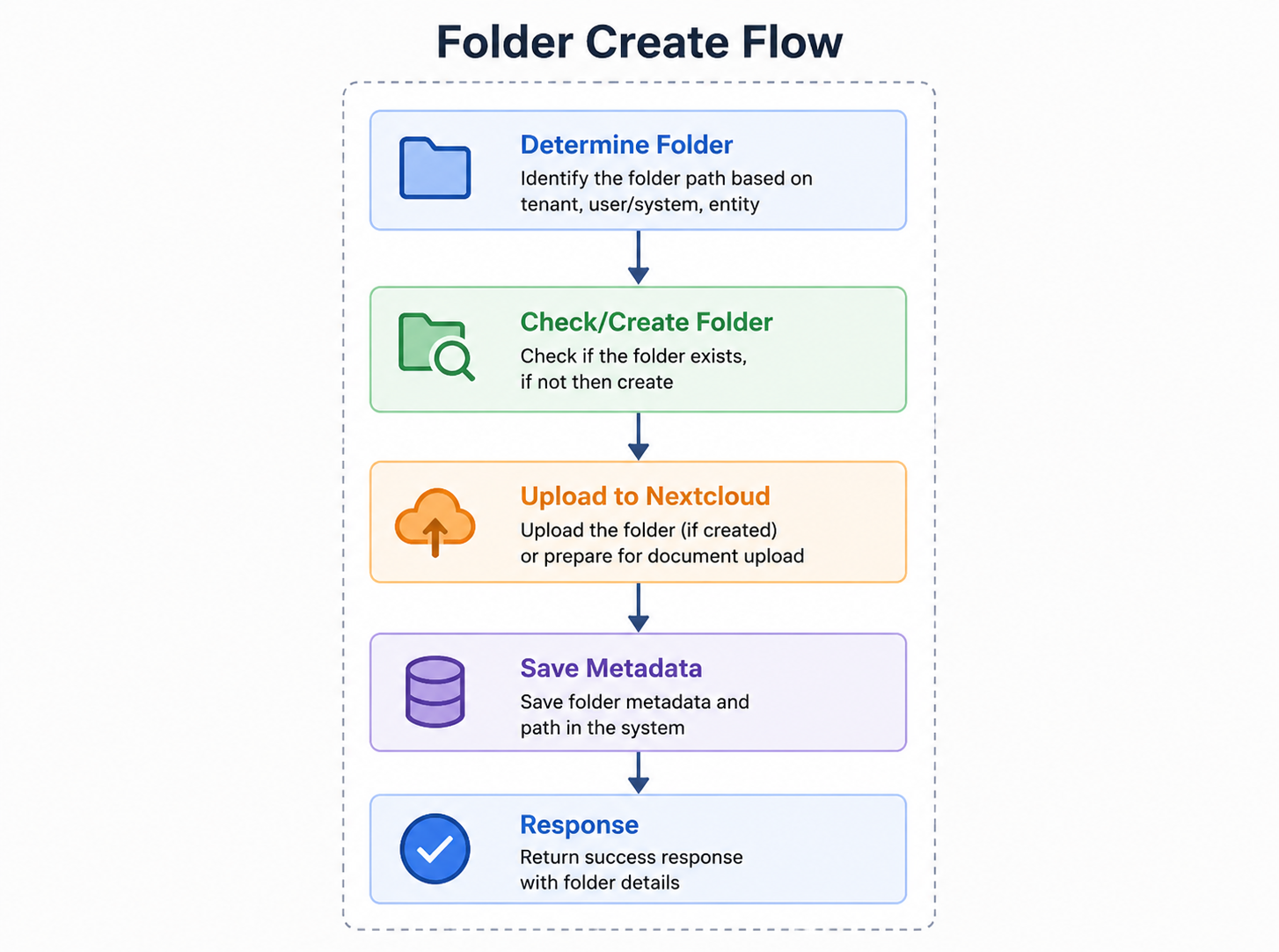
This prevents the application from trying to upload a document to a non-existent location.
8. Store Document in Nextcloud
Once the required folder is available, the actual document is uploaded to Nextcloud.
Application → Document Service → Nextcloud → Tenant/User Folder → Actual Document
Nextcloud is responsible for storing the physical document, while the application manages the document’s business context and storage location.
9. Store Document Metadata
After a successful upload, the application stores the document metadata in MongoDB.
The metadata can contain information such as:
- File name
- File type
- Tenant ID
- User ID
- Entity
- Document path
- Creation information
This separation allows the application to manage document-related information without storing the actual file in MongoDB.
10. Reactive Processing
The application uses Spring WebFlux, so document operations follow a reactive programming model.
Check Folder →Create Folder → Upload Document →Save Metadata.
These operations are handled using reactive processing, avoiding unnecessary blocking operations.
New developers working on this module should therefore follow the reactive approach used throughout the application.
11. Error Handling
A document upload can fail at different stages of the process:
Validation → Folder Creation → Nextcloud Upload → Metadata Storage in MongoDB
Common problems include:
- Invalid file
- File size limit exceeded
- Incorrect folder path
- Folder creation failure
- Nextcloud authentication failure
- Document upload failure
- MongoDB failure
Proper logging and error handling are important for identifying where the upload process failed.
Sensitive information, such as authentication tokens and confidential document information, should never be written to logs.
12. Document View and Thumbnail
After storing documents in Nextcloud, the application provides separate APIs for viewing the actual document and displaying its thumbnail.
1. Document View API
The Document View API is used when the application needs to display or download the actual document.
For example:
GET /api/v1/document/{id}/view
The API identifies the document using its ID, retrieves the document metadata from MongoDB, and uses the stored Nextcloud file path and authentication details to access the actual file.
This is useful when users need to open or view the complete document.
2. Document Thumbnail API
The Thumbnail API is used to display a small preview or icon of a document, such as in document lists, cards, or dashboards.
GET /api/v1/document/{id}/thumbnail
The API first retrieves the document metadata and checks whether Nextcloud provides a preview for the file. If a preview is available, the API requests the thumbnail from the Nextcloud preview endpoint.
Why Use Separate APIs?
Using separate APIs for the actual document and its thumbnail provides better performance and a cleaner user experience.
- Document View API → Returns the actual/full document.
- Thumbnail API → Returns a small preview image.
- MongoDB → Stores and provides document metadata.
- Nextcloud → Stores the actual document and generates previews.
- Placeholder → Used when a document preview is unavailable.
The overall flow is:
                                Document ID
                                    ↓
                      Find Document Metadata in MongoDB
                                    ↓
                   Get Nextcloud File Path & Authentication
                                    ↓
                     ┌─────────────────────────────┐
                     │                             │
                     ▼                             ▼
              View Document API               Thumbnail API
                     ↓                             ↓
             Nextcloud Actual File           Nextcloud Preview
                     ↓                             ↓
               Full Document                Small Preview / Icon
This approach avoids loading large documents when only a small preview is required, which helps reduce unnecessary network and resource usage.
Conclusion
The document storage architecture can be summarized as:
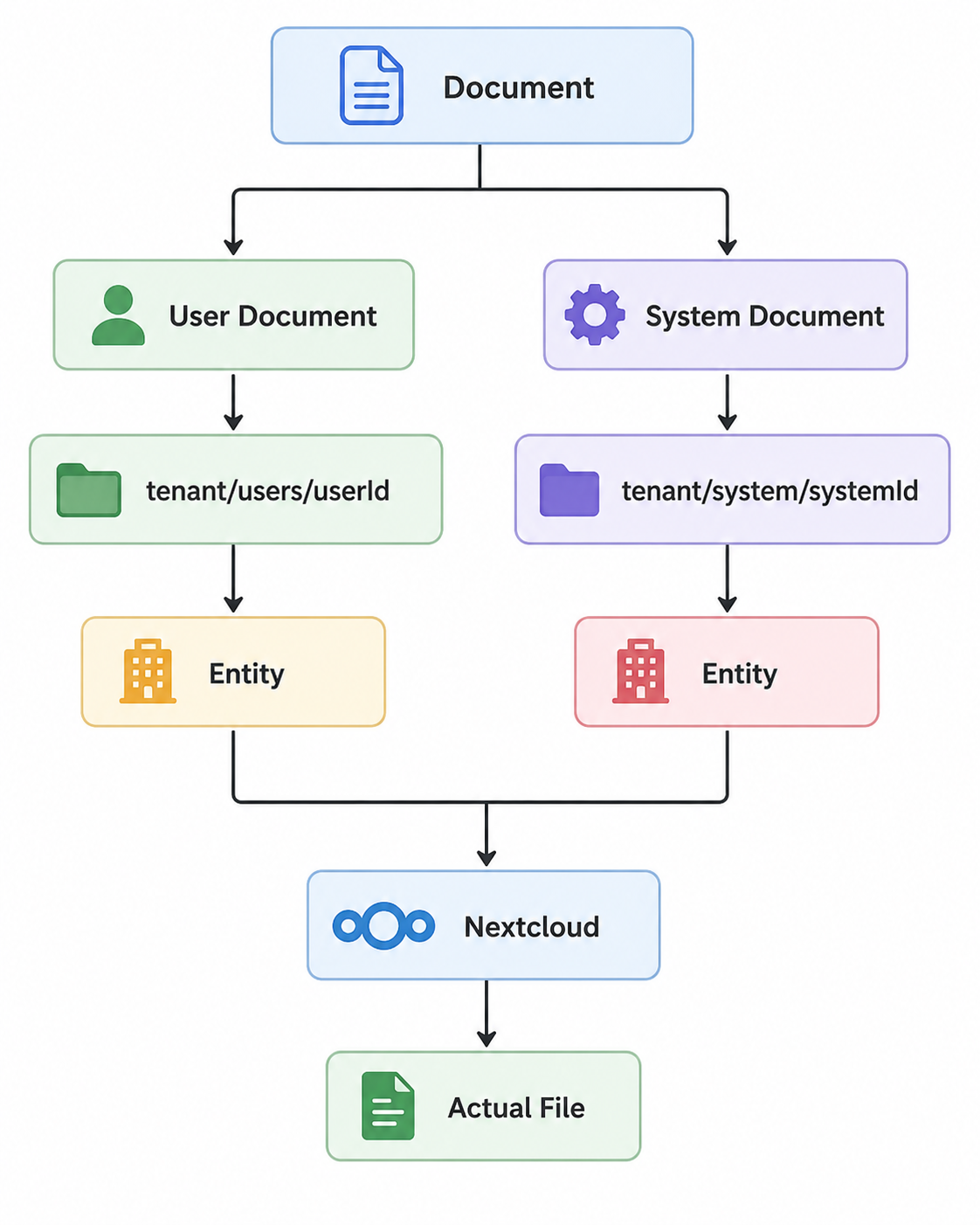
For the default SYSTEM tenant, application-level documents are stored separately:
SYSTEM/default-system-1/SYSTEM/
This architecture provides a clear and organized approach to managing documents across tenants, users, system entities, and application-level system data.
The overall flow is straightforward:
Tenant Configuration → Identify Document Context → Build Storage Path → Check/Create Folder → Upload to Nextcloud → Save Metadata in MongoDB
Understanding this flow provides new developers with a solid foundation for working with the document management module.